I still remember the first time I plugged in a copy of Castlevania II and heard the pulse wave bass line of “Bloody Tears” rising into the triangle wave melody. That 8-bit sound signature drew me into chiptune composition, and Furnace Tracker is the modern tool I now use to make my own NES music. If you want to recreate that nostalgic sound on your computer, this guide walks you through exactly how to set up Furnace Tracker for NES music from a clean install to your first exported NSF file.
By the end of this guide, you’ll know how to install Furnace Tracker, configure it for the NES sound chip, build a basic instrument, place notes in a pattern, and export your track. I’ll also cover NES expansion audio chips like VRC6, which is one of the few topics competitors leave out.
IN THIS ENTRYTable of Contents
- 1What Is Furnace Tracker?
- 2Why Use Furnace Tracker for NES Music?
- 3System Requirements
- 4How to Download and Install Furnace Tracker
- 5Understanding the Furnace Tracker Interface
- 6How to Set Up Furnace Tracker for NES Music
- 7Understanding Hexadecimal in Furnace Tracker
- 8Creating Your First NES Instrument
- 9Placing Notes in Patterns
- 10NES Expansion Audio: VRC6, VRC7, and MMC5
- 11Exporting Your NES Music
- 12Tips for Beginners
- 13FAQs
- 14How to use a furnace tracker?
- 15What is a chiptune tracker?
- 16What is a furnace tracker?
- 17What are some popular music tracker programs?
- 18Conclusion
What Is Furnace Tracker?
Furnace Tracker is a free, open-source chiptune music tracker that emulates over 60 retro sound chips, including the 2A03 chip found inside the original Nintendo Entertainment System. Created by tildearrow and released under the GPL license, it lets composers build authentic 8-bit and 16-bit music on Windows, macOS, and Linux without any hardware.
Unlike a traditional digital audio workstation, Furnace works on a table-based pattern editor. You drop notes, instruments, and effect commands into rows and channels, then play back the song row by row. The tracker handles all the sound chip emulation internally, so what you hear is exactly what an NES or Genesis would have produced back in the day.
Why Use Furnace Tracker for NES Music?
The NES has a tiny but distinctive sound chip called the 2A03. It offers five audio channels: two pulse waves, one triangle wave, one noise channel, and one DPCM sample channel. To get music that sounds authentic, your tracker needs accurate emulation of that chip, and Furnace nails it.
Compared to FamiTracker, which only targets the NES family and was last actively updated in the 2010s, Furnace is still in active development and supports many more systems. If you want to write NES music today and possibly branch into SNES, Genesis, or Game Boy later, Furnace is the better long-term choice. The Furnace developer even maintains his own Famicom NSF player library for testing, and the NES emulation cores are accurate enough to round-trip exports back to real hardware.
For NES chiptune composition, Furnace also handles expansion chips that FamiTracker famously pioneered, including VRC6, VRC7, MMC5, and N163, all from the same project file.
System Requirements
Furnace Tracker runs on most modern computers. Officially supported platforms include Windows 7 and later, macOS 10.13 and later, and Linux distributions with glibc 2.31 or newer.
For smooth pattern editing with multiple chips at once, I’d recommend at least 4GB of RAM and a dual-core processor. The interface can stress older hardware when you load very large songs or stack many sound chips, but for standard NES work any laptop from the last five years will handle it easily.
How to Download and Install Furnace Tracker
Getting Furnace on your machine takes about five minutes. Here’s the cleanest path I have found:
Visit the official site at tildearrow.org/furnace and click the Download link, or go directly to the GitHub releases page at github.com/tildearrow/furnace/releases.
Pick the build for your operating system. Windows users grab the .zip file, macOS users grab the .dmg, and Linux users grab the AppImage or tarball.
Extract the archive to a folder you will not accidentally delete. I keep mine in a folder called “Audio” inside Documents.
On Windows, double-click “furnace.exe” inside the extracted folder. On macOS, drag the Furnace icon into your Applications folder, then right-click and choose Open the first time to bypass Gatekeeper.
On Linux, make the AppImage executable with “chmod +x furnace*.AppImage” and run it.
When the program opens, you should see the default song loaded. If so, installation is complete.
The application is fully portable, so uninstalling just means deleting the folder. There is no registry entry on Windows or system-wide install on Linux.
Understanding the Furnace Tracker Interface
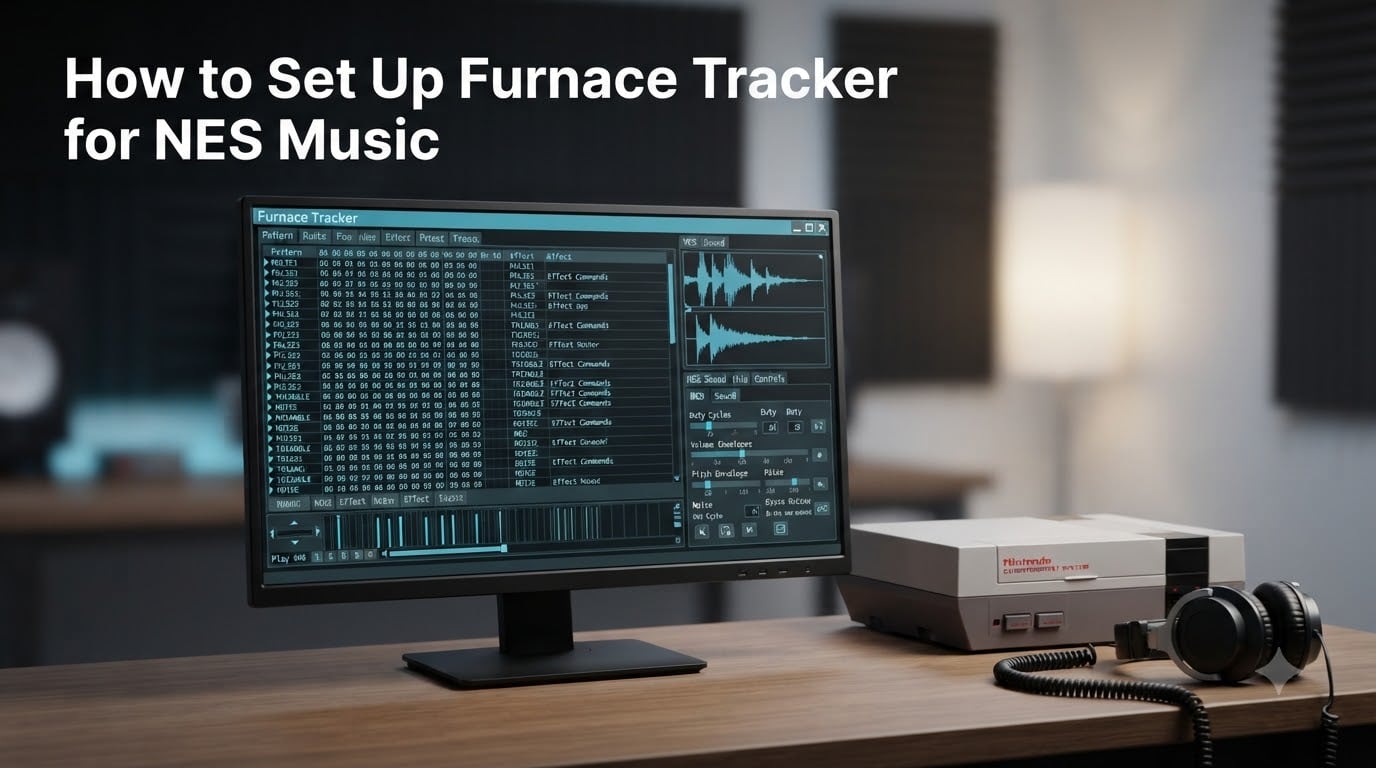
When Furnace opens for the first time, the interface looks dense. Here is a breakdown of the panels you will spend the most time with.
The pattern editor sits in the center of the screen and takes up most of the window. It is a grid where the rows represent time moving down and the columns represent either channels or note data. Each row is one “tick” of the song, and you place notes by selecting a row and typing.
The instrument panel sits on the right side of the screen and lets you edit the sound your notes make. Inside the instrument editor you will find the envelope editor, which controls how the volume changes over time, plus macros and a waveform display for chips that allow custom waveforms.
The channel mixer at the bottom shows every active channel’s current state, including volume meters. The oscilloscope and waveform display on the top or bottom of the screen visualize what the chip is actually producing, which is incredibly useful when designing NES instruments.
How to Set Up Furnace Tracker for NES Music
Here is the part of the guide the title promised: the actual NES-specific setup. Most chiptune trackers assume you might be making any kind of retro music, so you have to point Furnace at the NES sound chip before you start composing.
Follow these steps to configure Furnace for NES work:
Open Furnace and start a new song with File, then New.
Click on the Song menu and choose Change System. A dialog opens listing all supported sound chips.
Locate the NES section and select “NES / Famicom (2A03)” for the standard sound chip. For expansion audio, also enable “Famicom Expansion (VRC6)” or another expansion chip in the same dialog.
Confirm the channel count. The standard 2A03 gives you five channels: two pulse, one triangle, one noise, and one DPCM.
Set the tempo. NES songs typically use 150 or 160 BPM as a starting point, with the speed set to 6 rows per beat.
Click OK and the pattern editor will reload with the correct channel layout for the chip.
You are now configured to write NES music. The pattern editor will show the channels labeled Pulse 1, Pulse 2, Triangle, Noise, and DPCM, which exactly matches the hardware inside an NES cartridge.
Understanding Hexadecimal in Furnace Tracker
If you have never used a tracker before, the pattern grid looks strange because every value is written in hexadecimal, also called hex. That is base-16 counting, where the digits go 0 through 9 and then A, B, C, D, E, F to represent ten through fifteen.
Hex is used because the sound chips themselves work in hex values, and it gives you finer control than decimal. A volume of “F” in hex equals 15 in decimal, while “FF” equals 255. Effect columns use hex codes that map to commands the chip understands. Once you internalize the basics, hex becomes faster than decimal because every value is two digits.
Creating Your First NES Instrument
Now that your project is set up for the 2A03 chip, let’s build a basic NES lead sound. Instruments in Furnace live in the instrument panel on the right.
Click the plus icon in the instrument list to create a new instrument. Give it a name like “Lead 1” so you can find it later. Open the envelope editor for the instrument. NES pulse waves use a four-step volume envelope, so set your envelope to start at full volume and decay to silence over about 16 rows for a plucky sound.
Pick a duty cycle on the macro tab. The NES pulse wave supports four duty cycles, often labeled 12.5%, 25%, 50%, and 75%. The 25% and 12.5% settings give classic NES lead tones, while 50% is more rounded. Pick the 25% duty for the lead we are building.
Save your instrument. You can now place it in any pulse channel in the pattern grid.
Placing Notes in Patterns
To start writing notes, click into the pattern editor and select a channel. Press a number key from C-1 through B-8 to enter a note. The keyboard mapping in Furnace places the lowest note on Z and the highest on the upper rows of the keyboard, but you can change the layout in settings.
Each row is one note event. To make a melody, click into Pulse 1 on row 0 and press a note. Move down two rows and press another note. The pattern will play these in sequence when you hit Play at the top of the screen.
To attach an instrument to a note, type the instrument number in the second column of that row. To stop a note, type “OFF” or use the release macro. To insert a rest, type “…” in the note column.
This grid-based approach is what gives tracker music its characteristic rhythmic feel, and once you internalize it, you can compose surprisingly fast.
NES Expansion Audio: VRC6, VRC7, and MMC5
Standard NES cartridges only contained the 2A03 chip, but some games added expansion audio chips inside the cartridge itself to extend the system’s sound capabilities. Furnace supports all of these.
VRC6 adds two extra pulse wave channels and one sawtooth wave channel, used famously in games like Castlevania III and River City Ransom. To enable it in Furnace, repeat the system setup process but also add the “Famicom Expansion (VRC6)” chip in the system dialog. You will see the additional channels appear in your pattern editor.
VRC7 adds six FM synthesis channels based on the Yamaha YM2413 chip, used in games like Lagrange Point. MMC5 adds two extra pulse channels and one DAC channel, used in games like Castlevania II’s Japanese version. The Namco 163 chip adds even more wavetable channels.
For pure NES authenticity, stick to 2A03 only. For richer arrangements, layer a VRC6 channel under a 2A03 lead to get the sound of late-era NES releases.
Exporting Your NES Music
Once you have a song you like, you need to export it. Furnace supports multiple formats, and the right one depends on your goal.
For playing on real NES hardware or emulators, export to NSF, which stands for Nintendo Sound File. NSF files contain your song data plus a small player that runs on any NES-compatible system. Go to File, then Export, then Export NSF. Furnace will ask for an artist tag and song title, then write the .nsf file.
For arcade-style hardware or for archival, export to VGM, which captures every register update. For sharing online or burning to a CD, export to WAV to render the song as audio. Furnace also exports ROMs for development cartridges.
If you plan to use the music in an actual NES game, the most common workflow is exporting the song as assembly source for use with cc65 or neslib, then including it directly in your cartridge build.
Tips for Beginners
After spending time in the Furnace Discord and watching tutorials, here are the tips that would have saved me the most time.
Start with a cover of a song you already know. Remaking a familiar tune forces you to make musical decisions you would otherwise defer. YouTube creator Spinning Square Waves has an excellent Furnace tutorial series, and the official Furnace documentation on tildearrow.org is required reading.
Build a small library of 4 to 6 reusable instruments before you write a full song. Switching instruments every pattern is tempting, but restraint is what gives NES music its tight sound. Use the Furnace Discord to ask questions, because the community is friendly and helpful to newcomers.
Finally, save often. Furnace is stable but tracker projects can grow into hundreds of patterns, and losing your work is painful.
FAQs
How to use a furnace tracker?
Open Furnace Tracker and create a new song. Choose your sound chip in the Song menu under Change System. Place notes into the pattern editor by selecting a channel and pressing a key on your keyboard. Add instruments via the instrument panel on the right. Press Play to hear your song.
What is a chiptune tracker?
A chiptune tracker is music software that emulates retro sound chips so composers can create 8-bit and 16-bit style music. Instead of recording audio, you place notes and effects into patterns that play back through the emulated chip.
What is a furnace tracker?
Furnace Tracker is a free, open-source chiptune music tracker created by tildearrow. It emulates over 60 retro sound chips including the NES 2A03 and supports modern features like VGM and NSF export on Windows, macOS, and Linux.
What are some popular music tracker programs?
Popular tracker programs include Furnace Tracker, FamiTracker, OpenMPT, MilkyTracker, DefleMask, and Buzz. Furnace is the most actively developed modern option, while FamiTracker remains a classic for NES-specific composition.
Conclusion
Learning how to set up Furnace Tracker for NES music is the first step into a wider world of chiptune composition. Once your tracker is configured for the 2A03 chip and you understand the pattern editor, you can start building authentic 8-bit tracks the same way composers like Kinuyo Yamashita and Hiroshi Miyauchi did back in the late 1980s.
From here, I would suggest picking one short song you love and recreating it inside Furnace. The skills you build covering a familiar tune transfer directly to writing your own original NES music, and the chiptune community on Discord and Reddit is ready to help when you get stuck.