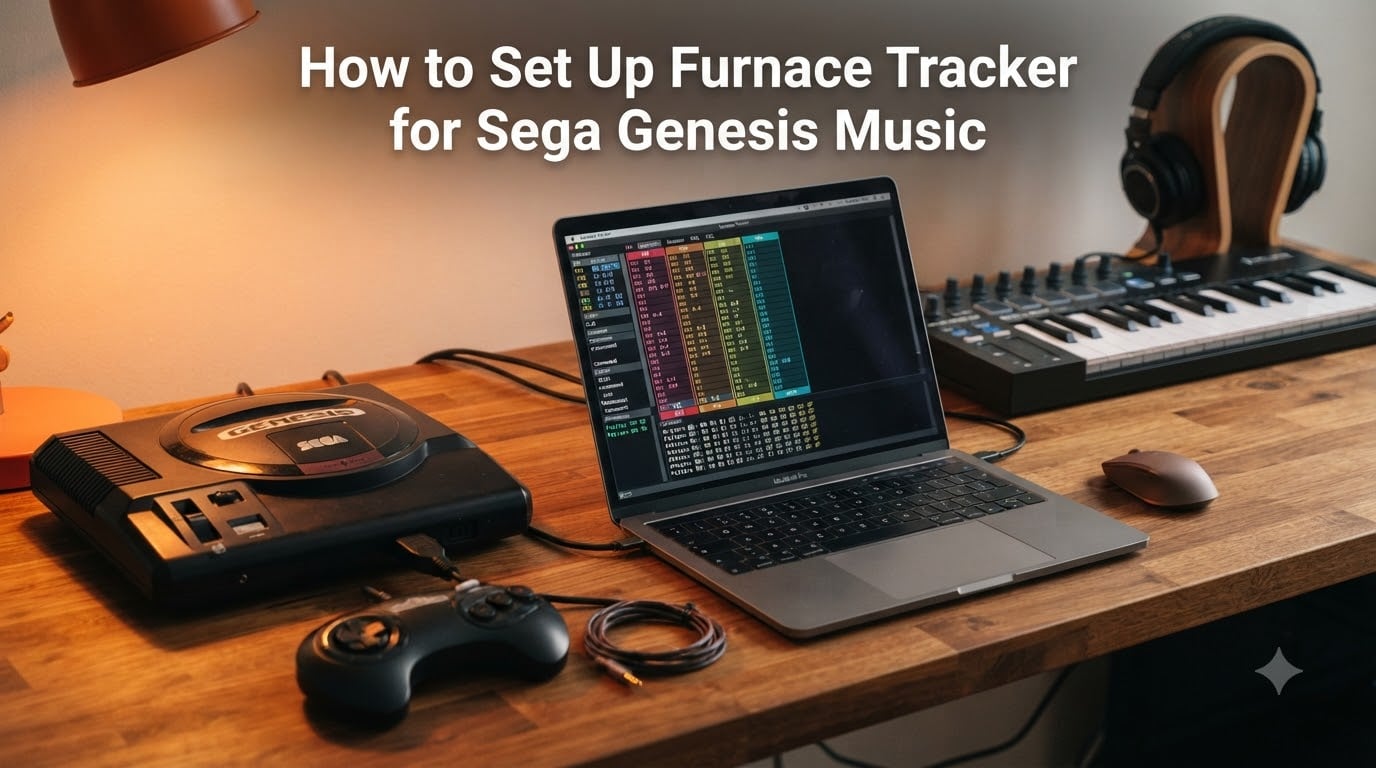
If you’ve ever wanted to make music that sounds like Sonic the Hedgehog, Streets of Rage, or Golden Axe, the Sega Genesis sound is calling your name. I spent a few weekends digging into Furnace Tracker so I could put together this walkthrough, and I want to save you the hours I lost fumbling around the interface.
This guide covers the full Furnace Tracker Sega Genesis setup, from installing the software to creating your first FM instrument and exporting a finished song. No prior tracker experience required.
IN THIS ENTRYTable of Contents
- 1What Is Furnace Tracker?
- 2How to Set Up Furnace Tracker for Sega Genesis Music
- 3Step 1: Download and Install Furnace
- 4Step 2: Create a New Genesis Module
- 5Understanding the YM2612 FM Chip
- 6Interface Tour: Pattern View, Orders, and Instruments
- 7Creating Your First FM Instrument
- 8Note Entry and Playback Basics
- 9Volume, Effects, and Macros
- 10Sega PSG Channels: Square Waves and Noise
- 11Tempo, Speed, and Groove Patterns
- 12Exporting Your Song to VGM
- 13FAQs
- 14How do I use a furnace tracker?
- 15What is a chiptune tracker?
- 16Is Sega Genesis music chiptune?
- 17What is a furnace tracker?
- 18Can Furnace export to VGM for real Genesis hardware?
- 19Conclusion
What Is Furnace Tracker?
Furnace Tracker is a free, open-source chiptune tracker that supports almost every classic 8-bit and 16-bit sound chip. Created by tildearrow and maintained by an active community on GitHub, it lets you compose music for systems like the Sega Genesis, NES, Game Boy, arcade boards, and dozens more, all from one application.
A chiptune tracker works like a spreadsheet: each row is a note, each column is a channel, and you enter hex values to control pitch, volume, and effects. Unlike a piano-roll DAW, every note you place is exactly what the chip will play. There is no audio rendering magic, which is why Genesis tracks made in Furnace sound identical to real console hardware.
Furnace is the most versatile chiptune tracker available right now. Where DefleMask supports fewer systems and Famitracker focuses on NES, Furnace covers them all and adds modern features like macros, wavetables, and groove patterns. It runs on Windows, macOS, and Linux.
How to Set Up Furnace Tracker for Sega Genesis Music
The Furnace Tracker Sega Genesis setup is straightforward once you know which menu to open. Below is the full workflow, broken into 12 steps. Each step links to a deeper section further down the page.
Download Furnace from the official site
Install and launch the application
Create a new module and select Sega Genesis as the system
Learn what the YM2612 FM chip can do
Tour the pattern view, orders, and instrument list
Create your first FM instrument
Enter notes and play them back
Adjust volume, effects, and macros
Add Sega PSG square wave or noise channels
Set tempo, speed, and groove patterns
Export your song to VGM format
Test playback on real hardware or emulator
Step 1: Download and Install Furnace
Head to the official Furnace website at tildearrow.org/furnace. Downloads are organized by operating system. Pick the build that matches your setup. Windows users get a portable .zip file, macOS users get a .dmg, and Linux users can grab an AppImage or build from source.
I run Windows, so I extracted the .zip to a folder on my desktop and launched furnace.exe. The app opens directly without an installer. This is intentional — you can carry Furnace on a USB stick and run it on any machine.
The first launch shows the song/playlist window. Don’t worry if it looks empty. We’ll load a Genesis-friendly template in the next step.
Step 2: Create a New Genesis Module
From the File menu, choose “New” or press Ctrl+N. A system selection window opens with a list of every chip Furnace supports. Scroll until you see “Sega Genesis / Mega Drive.” Click it, then confirm.
Furnace creates a module with 10 channels by default: 6 FM channels powered by the YM2612, and 4 PSG channels driven by the SN76489. The pattern grid fills the screen and you’re ready to start composing.
Save your work right away with Ctrl+S and pick a memorable filename. I learned this the hard way after losing an entire afternoon’s work to a crash.
Understanding the YM2612 FM Chip
The Yamaha YM2612 is the FM synth chip that defines the Sega Genesis sound. It is a six-channel, four-operator FM synthesizer. That single sentence hides a lot of power, so let me unpack it.
“Six-channel” means the chip can play six separate notes at once. “Four-operator” means each channel is built from four sine-wave generators called operators. Each operator has its own pitch, volume envelope, and modulation behavior. By stacking four operators in different configurations called algorithms, you can shape the sound from a clean electric piano to a screaming distorted lead.
The YM2612 also has a hidden trick. Channel 6 can switch from FM mode into an 8-bit PCM sample player. This is how games like Streets of Rage fit drum breaks into their soundtracks. Furnace exposes this as a dedicated sample playback mode.
If you want a deeper dive, the Furnace documentation has a full YM2612 page that lists every effect code, the extended channel 3 mode, and the CSM (Composite Sinusoidal Modeling) speech synthesis mode used in games like Phantasy Star IV.
Interface Tour: Pattern View, Orders, and Instruments
Furnace uses ImGui, which gives it a dense, multi-panel layout. The first time I opened it, I panicked. After an hour it started making sense. Here is what each panel does.
The Pattern View dominates the center. It is a grid of cells, one row per tick, one column per channel. Each cell holds a note, an instrument number, a volume value, and an effect. You scroll vertically through time and horizontally through channels.
The Orders list sits to the left. Think of it as the table of contents for your song. Each row is a pattern position, and you tell the song which pattern number to play at each position. This is how you arrange verses, choruses, and bridges.
The Instrument list lives on the right. Each instrument you create gets a slot here. You double-click a slot to open the instrument editor, where you tweak operators, algorithms, and macros.
The Transport bar runs along the top or bottom with Play, Stop, Edit, and a position counter. Press F5 to play from the cursor position and F6 to stop.
Creating Your First FM Instrument
Creating an FM instrument is where the magic happens. Right-click in the Instrument list and choose “Add.” A new instrument opens with default settings. Most beginners leave the default sound, but you’ll want to tweak it for any real track.
The instrument editor shows two main views: the operator panel and the algorithm view. The algorithm view is a small diagram showing how the four operators connect. Each algorithm produces a different harmonic structure. Algorithm 4 is a classic stack used for electric pianos. Algorithm 7 produces a bright lead. Algorithm 0 stacks all four operators in series for a thick, distorted tone.
For each operator, you can adjust:
Attack, Decay, Sustain, Release (ADSR) envelope
Total level (volume)
Multiplier (relative pitch)
Detune (fine pitch offset)
Modulation routing (whether it acts as a carrier or modulator)
Start by lowering the total level of operator 4, raising the multiplier on operator 1, and switching to algorithm 7. You will hear a sharp, bell-like lead the moment you play a note. Tweak from there.
If you want a head start, Furnace ships with demo files. Open File > Open and look in the “demos” folder. There are several Genesis tracks that show off authentic sound design.
Note Entry and Playback Basics
Now for the fun part. Click in the pattern view to focus it, then press a key on the on-screen piano keyboard. The keyboard appears at the top of the pattern view and maps your QWERTY keys to notes starting from C.
Each press inserts a note into the current row. The cursor advances to the next row automatically. Press F5 to play what you’ve entered so far.
Two commands you’ll use constantly:
Note Off (OFF): silences the note but lets the release tail ring out. Good for sustained sounds.
Note Cut (===): silences the note instantly. Good for percussive bass plucks.
Furnace supports Play mode and Edit mode. In Play mode, editing doesn’t move the cursor. In Edit mode, every edit advances. Toggle with Space.
You can transpose, repeat rows, undo with Ctrl+Z, and copy/paste selections with Ctrl+C and Ctrl+V. Selection is done by clicking and dragging with the right mouse button.
Volume, Effects, and Macros
The Volume column lives to the right of the Instrument column. It uses hexadecimal values from 00 to FF. 00 is silence, FF is full volume, and the maximum you should usually use is around C0 to leave headroom.
Each channel has effect columns after the volume column. Common Genesis effects include:
0xy: Arpeggio (rapidly cycle between note, note+x, note+y)
1xx: Portamento up
2xx: Portamento down
Axx: Volume slide
Bxx: Position jump (jump to order row xx)
Fxx: Set speed
Macros are where Furnace pulls ahead of older trackers. A macro is an automated sequence of values that runs over time. You can create a volume macro that fades in from 00 to FF over 30 ticks, a vibrato macro that wobbles the pitch, or a panning macro that sweeps the note between the left and right speakers. To add one, open the instrument editor, click the “Macros” tab, and define a new macro.
Release points let a macro continue naturally after a note off. This is how you get realistic instrument tails without manually placing a hundred volume values.
Sega PSG Channels: Square Waves and Noise
The Genesis also includes a SN76489 chip, sometimes called the Sega PSG. It runs alongside the YM2612 and adds four more channels: three square wave channels with different volume levels, plus one noise channel for percussion.
In Furnace, the PSG channels sit at the bottom of the channel list. They are simple compared to FM, but they shine for bass lines, simple melodies, and noise effects. Many Genesis composers layer a square wave bass under FM leads for that classic 16-bit punch.
PSG instruments only have a few parameters: wave type, volume, and a couple of envelope options. You can still attach macros and effects, so they integrate cleanly with the rest of your track.
Tempo, Speed, and Groove Patterns
Speed and tempo are separate concepts in Furnace. Speed is the number of ticks per row. The default is 6, which means each row lasts 6 ticks. Tempo is the BPM at which rows play. Together they determine the actual playback rate.
Open the Speed window from the song menu. You’ll see sliders for both values. Most Genesis music uses speeds between 4 and 8 with tempos around 120 to 160 BPM.
Groove patterns let you add swing or shuffle. Open the Grooves window and define a sequence of tick delays per row. A 6-8 swing creates a relaxed feel, while 8-6 swing pushes the beat. Many Mega Drive tracks use subtle grooves to make the drums feel more human.
Exporting Your Song to VGM
When your track is done, exporting is a single menu click. Go to File > Export > VGM. Pick a filename and confirm. Furnace writes a .vgm file that contains every register write the YM2612 and SN76489 chips would receive during playback.
VGM files play in any Genesis emulator like RetroArch, Kega Fusion, or Mednafen. You can also flash them to a cartridge with a Mega Everdrive Pro or similar flash cart and play them on real hardware.
For chip music competitions or sharing online, VGM is the standard format. For YouTube videos, export to WAV instead from the same menu and mix in a video editor.
FAQs
How do I use a furnace tracker?
Open Furnace, create a new module, select your target system (for example Sega Genesis), and start entering notes in the pattern view. Each row is a tick, each column is a channel, and you assign instruments and effects to shape the sound.
What is a chiptune tracker?
A chiptune tracker is a music application that uses a spreadsheet-style grid to enter notes and effects. Each row represents a moment in time and each column is a sound channel that targets a specific hardware chip like the YM2612 or SN76489.
Is Sega Genesis music chiptune?
Yes. Sega Genesis music is chiptune because it is generated by dedicated sound chips (the YM2612 FM synth and the SN76489 PSG) rather than recorded audio. The only exceptions are games that use CD audio or the 32X add-on.
What is a furnace tracker?
Furnace Tracker is a free, open-source chiptune tracker created by tildearrow. It supports nearly every classic 8-bit and 16-bit sound chip including the Sega Genesis YM2612, NES, Game Boy, arcade boards, and many more.
Can Furnace export to VGM for real Genesis hardware?
Yes. Use File u0026gt; Export u0026gt; VGM and Furnace writes a .vgm file containing every register write needed. VGM files run on real Genesis hardware via flash cartridges like the Mega Everdrive Pro.
Conclusion
You now have a complete Furnace Tracker Sega Genesis setup from a fresh install to a finished VGM file. Install Furnace, pick the Sega Genesis system, learn the YM2612 FM chip, create one instrument, enter a few notes, and export to VGM. That single loop covers more ground than any amount of theory reading.
From here, the best thing you can do is open the demo songs that ship with Furnace and study how they use FM. Pay attention to algorithm choices, envelope lengths, and macro usage. Those three decisions are what separates a beginner Genesis track from something that sounds like Streets of Rage.
If you get stuck, the r/FurnaceTracker subreddit and the official GitHub discussions are full of friendly composers who remember their own first day fumbling through the interface. Now go make something that would have fit on a Mega Drive cartridge.